



_________________________________________
Apple touts the Mac mini as being compatible with any USB keyboard, but there's a catch:
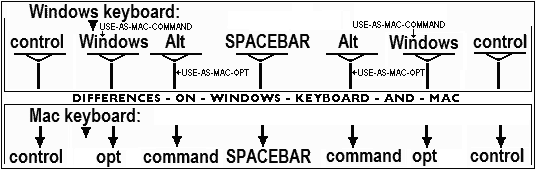
If your keyboard was designed for use with a Windows computer,
it does'nt have the Mac's familiar command,(a.k.a. "Apple")or option keys. Instead,
it has Alt and Windows keys. Although these keys are in the same block of space
on a Windows keyboard as they are on a Mac keyboard, and they're functionally
and logically equivalent.. the Alt key acts as option,
Windows key acts as Apple/command, but their layout is backwards:

In other words, when you use a Windows keyboard with a Mac,
the option and command keys are switched.
Enter the free DoubleCommand (4 mice), a Mac OS X kernel extension
that lets you swap the functionality of the Alt and Windows keys,
thus making any Windows keyboard behave just like a Mac keyboard
it's useful not only for "switchers", but also for current Mac users
who would like to be able to use any ol' Windows keyboard they might find on sale.
(You can even use a PS/2 keyboard with a Mac via an inexpensive PS/2-to-USB adapter.)
This feature alone makes DoubleCommand a must-have for Windows-keyboard-using Mac users,
but it does much more. Via the DoubleCommand preference pane, you can remap
(change the function/position of) a number of keys on your keyboard. Here's the full list:
* Enter key acts as command key
* Enter key acts as control key
* Enter key acts as option key
* Enter key acts as fn key
* Command key acts as option key
* Command key acts as control key
* Option key acts as command key
* Control key acts as command key
* Swap control key and option/alt key
* CapsLock acts as control key
* fn key acts as control key
* Swamp numpad . with shift+numpad .
* Shift-backspace acts as forward delete
* Disable command and option keys
* Windows-style home/end keys
* Backslash (\) acts as forward delete
* Swap F-key behavior on new PowerBooks and iBooks
* Disable CapsLock
 (I've marked the two settings to use above, to make your Windows keyboard act like a Mac keyboard.)
You can choose any combination of the above options and then save them for
your own user account or, if you're an administrative user, for all user accounts...

(As an interesting side note, DoubleCommand got its name because
its original purpose was simply to remap the enter key to command,
thus giving PowerBook users two command keys.)
As always, when working with kernel extensions, be sure to read the
accompanying documentation thoroughly before installing.
Similarly, as with all kernal extensions, if Apple releases an update
to Mac OS X, it's a good idea to check the DoubleCommand website
for compatibility before installing that update....
That being said, I've been using DoubleCommand on my Mac mini,
with a Dell keyboard, for the past week and a half.
After configuring DoubleCommand using the settings in bold, above,
the Dell keyboard worked exactly like my Mac keyboard.
(If you're wondering how to eject CDs and DVDs using a Windows keyboard,
simply hold down the F12 key for a few seconds; this emulates the eject key on Apple keyboards.)
If you're a new Mac user who wants to keep using your current Windows keyboard,
DoubleCommand is the first software you should download and install.
[Note: I previously reviewed the handy utility uControl, which also lets you swap the Alt
and Windows keys. However, at the time of this writing, uControl is not compatible
with Mac OS X 10.3.7, the version of the Mac OS that shipped with the Original Mac mini.]
(article published in "Macworld" 01/2005, written by Dan Frakes)
